

Sage 50 Export Invoice to Excel: Step-by-Step Guide for Accurate Data Export
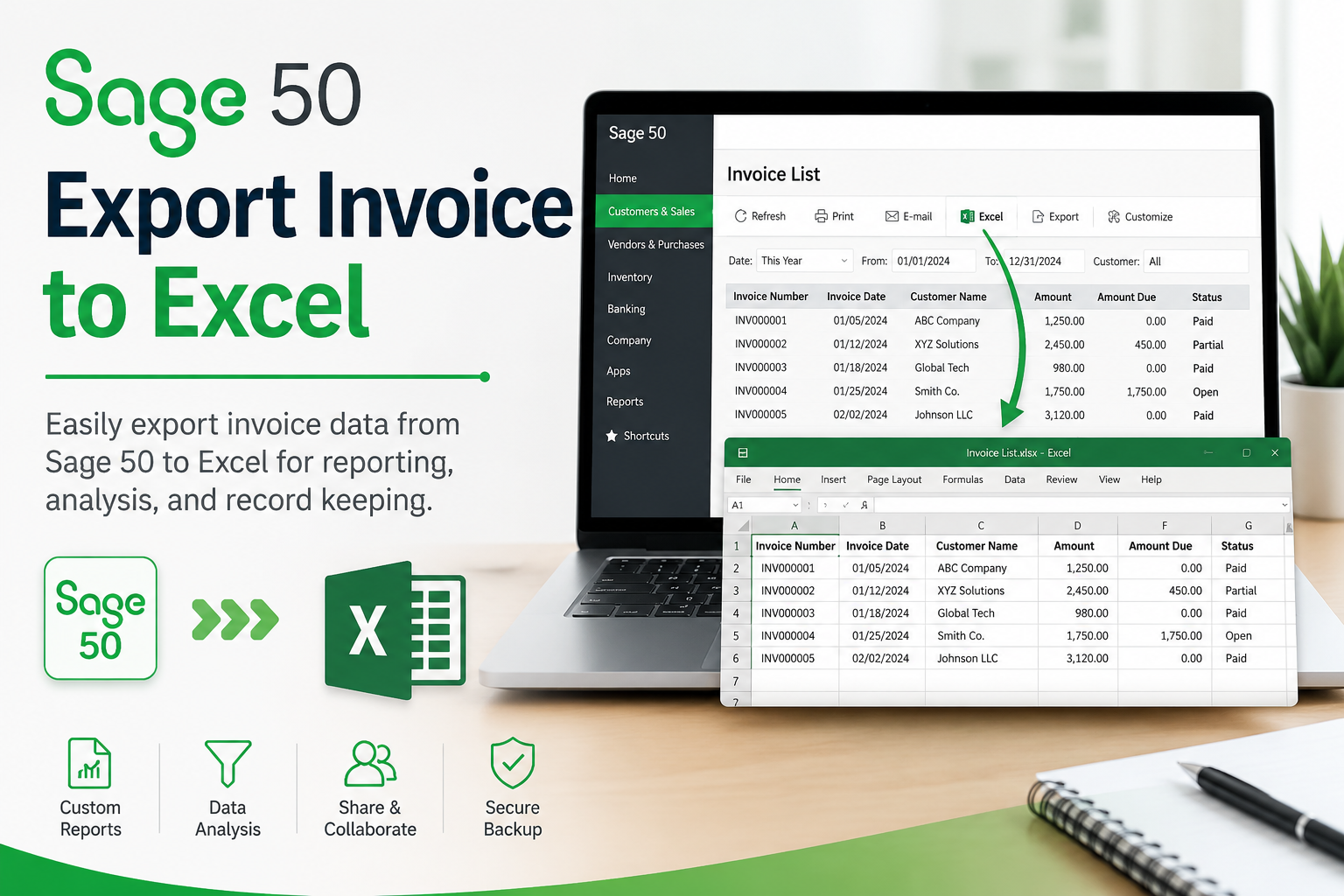
Exporting invoices from Sage 50 to Excel is a practical way to manage your financial data beyond the accounting software. Whether you're creating monthly sales reports, reviewing customer transactions, or preparing records for tax filing, the Sage 50 Export Invoice to Excel feature makes the process simple. Once your invoices are in Excel, you can sort, filter, calculate totals, and build customized reports without affecting your original accounting data.
This guide walks you through the export process, highlights its benefits, and provides solutions to common issues you may encounter.
Why Export Sage 50 Invoices to Excel?
Many businesses rely on Excel for data analysis and reporting. Exporting invoices from Sage 50 offers several advantages, such as:
- Create customized financial reports.
- Analyze sales performance over specific periods.
- Filter invoices by customer, payment status, or date.
- Share invoice data with accountants or auditors.
- Maintain a backup of invoice records.
- Import data into other business or reporting applications.
How to Export Invoice to Excel in Sage 50
Follow these steps to export your invoice data successfully.
Step 1: Sign In to Sage 50
Launch Sage 50 and open the company file. Log in with a user account that has permission to access reports and export data.
Step 2: Open the Invoice Window
Navigate to Customers & Sales, then select Sales Invoices or open the invoice report that contains the records you want to export.
Step 3: Apply Search Filters
Filter invoices by date range, customer, invoice number, or payment status to export only the records you need.
Step 4: Click the Export Option
Select the Export, Send To, or Excel button available on the toolbar. The exact location may vary depending on your Sage 50 edition.
Step 5: Select Excel Format
Choose Microsoft Excel (.xlsx) as the output format. If that option isn't available, export the data as a CSV file, which can also be opened in Excel.
Step 6: Save the File
Choose a location on your computer, provide a descriptive file name, and click Save to complete the export.
Step 7: Review the Exported Data
Open the Excel file and confirm that invoice details, customer information, amounts, taxes, and invoice dates have been exported correctly.
Common Problems During Invoice Export
Most exports complete without issues, but the following problems may occur.
Excel Export Option Is Missing
If you don't see the Excel option, confirm that Microsoft Excel is installed and compatible with your version of Sage 50.
Blank Export File
This usually happens when the selected filters return no invoice records. Verify the filter criteria and export again.
Incorrect Data Format
Currency, dates, or number formats may appear differently in Excel. Adjust these settings using Excel's built-in formatting tools.
Unable to Save the Export
Permission restrictions or a read-only folder can prevent the export from being saved. Select another destination folder or check your Windows user permissions.
Best Practices for Exporting Invoice Data
To ensure a successful export every time:
- Back up your Sage 50 company file before exporting large datasets.
- Export only relevant invoice records using filters.
- Keep Sage 50 and Microsoft Excel updated.
- Verify exported data before using it for reporting.
- Use meaningful file names that include the reporting period.
- Secure exported Excel files containing confidential financial information.
Conclusion
The Sage 50 Export Invoice to Excel feature helps businesses streamline reporting, improve data analysis, and simplify financial record management. By exporting invoice data into Excel, you can create customized reports, organize information more efficiently, and share accurate records with accountants or team members. Following the proper export steps and reviewing the exported spreadsheet ensures reliable results while helping you make better business decisions based on your financial data.
 Dutch
Dutch
 English
 Arabic
 French
 Spanish
 Portuguese
 Deutsch
 Turkish
 Italiano
 Russian
 Romaian
 Portuguese (Brazil)
 Greek
Greek